

| All rights reserved. |
 | |  | |  | |  | |  |



 | |  | |  |
 |

Steps to Initialize GPS
Why my system can not see the camera view even when I'm in reverse gear?
Your GPS will auto switch to camera view, whenever the camera is powered on, and receiver get the video signal.
Please do the debugging steps below.
1. Verify the wireless cigarette plug-in receiver has power. The LED light on the receiver should turn red.
2. Verify the wireless receiver video output plug into CORRECT LCD video input (Marked AV).
3. Verify the backup cam got the power. When on reverse, the LED next to the camera lens should turn to red. (9901T's
LED only turn to red when low light or dark condition)
4. Check to see the distance and blockage from the camera and monitor. The license plate cam 8909T is normally
for shorter distance (under 20 feet), and the round cam 8907T good up to 30 feet. Move the GPS with wireless receiver
closer to the camera while the camera is on and check whether it is due to distance or blockage problem.
If distance too far, for 8907T, you might try to move the transmitter closer, or less blockage to the monitor. Or add
extension cord to move the transmitter closer to the front. For 8909T, please adjust the first 1 foot of the wire comes out
of the camera (the antenna inside), to closer and less obstructive to the camera, and see whether you have better
signal. If due to distance problem, you might want to switch to 8907T.
5. If you see the camera image, but on and off, jumping or lots interference even when camera and monitor in close
distance. It might caused by other 2.4Ghz wireless product. Power off your blue-tooth, or drive away from your home
wireless router or cordless phone, see check to see any improvement on the interference.
Your GPS will auto switch to camera view, whenever the camera is powered on, and receiver get the video signal.
Please do the debugging steps below.
1. Verify the wireless cigarette plug-in receiver has power. The LED light on the receiver should turn red.
2. Verify the wireless receiver video output plug into CORRECT LCD video input (Marked AV).
3. Verify the backup cam got the power. When on reverse, the LED next to the camera lens should turn to red. (9901T's
LED only turn to red when low light or dark condition)
4. Check to see the distance and blockage from the camera and monitor. The license plate cam 8909T is normally
for shorter distance (under 20 feet), and the round cam 8907T good up to 30 feet. Move the GPS with wireless receiver
closer to the camera while the camera is on and check whether it is due to distance or blockage problem.
If distance too far, for 8907T, you might try to move the transmitter closer, or less blockage to the monitor. Or add
extension cord to move the transmitter closer to the front. For 8909T, please adjust the first 1 foot of the wire comes out
of the camera (the antenna inside), to closer and less obstructive to the camera, and see whether you have better
signal. If due to distance problem, you might want to switch to 8907T.
5. If you see the camera image, but on and off, jumping or lots interference even when camera and monitor in close
distance. It might caused by other 2.4Ghz wireless product. Power off your blue-tooth, or drive away from your home
wireless router or cordless phone, see check to see any improvement on the interference.
Why the screen alternate between a blank and camera view, or statics when my camera was power on?
Problem might due to weak camera signal. Check to see the distance and blockage from the camera and monitor. The
license plate cam 8909T is normally for shorter distance (under 20 feet), and the round cam 8907T good up to 30 feet.
Move the GPS with wireless receiver closer to the camera while the camera is on and check whether it is due to distance
or blockage problem. If distance too far, for 8907T, you might try to move the transmitter closer, or less blockage to the
monitor. Or add extension cord to move the transmitter closer to the front. For 8909T, please adjust the first 1 foot of the
wire comes out of the camera (the antenna inside), to closer and less obstructive to the camera, and see whether you
have better signal. If due to distance problem, you might want to switch to 8907T.
If you see the camera image, but on and off, jumping or lots interference even when camera and monitor in close
distance. It might caused by other 2.4Ghz wireless product. Power off your blue-tooth, or drive away from your home
wireless router or cordless phone, see check to see any improvement on the interference.
Problem might due to weak camera signal. Check to see the distance and blockage from the camera and monitor. The
license plate cam 8909T is normally for shorter distance (under 20 feet), and the round cam 8907T good up to 30 feet.
Move the GPS with wireless receiver closer to the camera while the camera is on and check whether it is due to distance
or blockage problem. If distance too far, for 8907T, you might try to move the transmitter closer, or less blockage to the
monitor. Or add extension cord to move the transmitter closer to the front. For 8909T, please adjust the first 1 foot of the
wire comes out of the camera (the antenna inside), to closer and less obstructive to the camera, and see whether you
have better signal. If due to distance problem, you might want to switch to 8907T.
If you see the camera image, but on and off, jumping or lots interference even when camera and monitor in close
distance. It might caused by other 2.4Ghz wireless product. Power off your blue-tooth, or drive away from your home
wireless router or cordless phone, see check to see any improvement on the interference.
Frequent Ask Questions on GPS w/ Backup Camera System :
Why my system stay on GPS mode even when I'm in reverse gear?
Why the screen alternate between a blank and camera view, or statics?
Why I can not get the GPS, even when I selected Navigation on the Main Menu?
My camera image is rotated, how do I rotate the camera image?
How to initialize the GPS system?
How to change from Km to Mile?
Why there is not TTS Tex-To-Speech?
How to set date time and timezone?
How to connect the wireless receiver and GPS unit?
Why System switch from GPS to Camera view when plug in A/V jack?
How select the GPS software?
How reset the GPS?
Why GPS help not working?
Why my FM not working?
Why the time reset itself?
How to select different country?
How to sync with bluetooth?
How do I set it so that when the power is turned off (engine off) the unit automatically goes to sleep mode?
My touch screen is no function well, how do I recalibrate the touch screen?
Why my system stay on GPS mode even when I'm in reverse gear?
Why the screen alternate between a blank and camera view, or statics?
Why I can not get the GPS, even when I selected Navigation on the Main Menu?
My camera image is rotated, how do I rotate the camera image?
How to initialize the GPS system?
How to change from Km to Mile?
Why there is not TTS Tex-To-Speech?
How to set date time and timezone?
How to connect the wireless receiver and GPS unit?
Why System switch from GPS to Camera view when plug in A/V jack?
How select the GPS software?
How reset the GPS?
Why GPS help not working?
Why my FM not working?
Why the time reset itself?
How to select different country?
How to sync with bluetooth?
How do I set it so that when the power is turned off (engine off) the unit automatically goes to sleep mode?
My touch screen is no function well, how do I recalibrate the touch screen?
Why I can not get the GPS, even when I selected the Navigation on the main menu?
1. Please make sure you insert SD card onto the unit. GPS System would require the SD card to work.
2. Please make sure the SD card lock into the GPS unit. You can push to Pop out, and insert again to be sure.
3. Please make sure the "Navigation" pointed to the correct Path
SETTING -> GPS -> GPS Path -> \StorageCard\iGO8.exe
(If you need to see step by step to set the Navi Path, click the image below.)
Or go to: www.4ucam.com/images/Navi-path-setting.jpg
4. If you got "Cannot find path, Maps are isolated", then you need to initialize the GPS system for first time usage.
See "Steps to Initialize GPS" below.
Please use/test the GPS on your drive way, instead of inside the garage, or at home. The system would require
satellites GPS signal to work.
5. When all attempts fail, you can reset the system by disable and re-enable the GPS.
NOTE: Please do not connect to PC on initial setup. Always connect to car cigarette lighter cable initially.
1. Please make sure you insert SD card onto the unit. GPS System would require the SD card to work.
2. Please make sure the SD card lock into the GPS unit. You can push to Pop out, and insert again to be sure.
3. Please make sure the "Navigation" pointed to the correct Path
SETTING -> GPS -> GPS Path -> \StorageCard\iGO8.exe
(If you need to see step by step to set the Navi Path, click the image below.)
Or go to: www.4ucam.com/images/Navi-path-setting.jpg
4. If you got "Cannot find path, Maps are isolated", then you need to initialize the GPS system for first time usage.
See "Steps to Initialize GPS" below.
Please use/test the GPS on your drive way, instead of inside the garage, or at home. The system would require
satellites GPS signal to work.
5. When all attempts fail, you can reset the system by disable and re-enable the GPS.
NOTE: Please do not connect to PC on initial setup. Always connect to car cigarette lighter cable initially.
System initialization:
1. Enable the GPS.
Settings->GPS->(Manual GPS Configuration) click "Autodetect" which will Enable the GPSWhen
you see "GPS receiver has been detected successfully", then GPS is enabled. (See sample below)
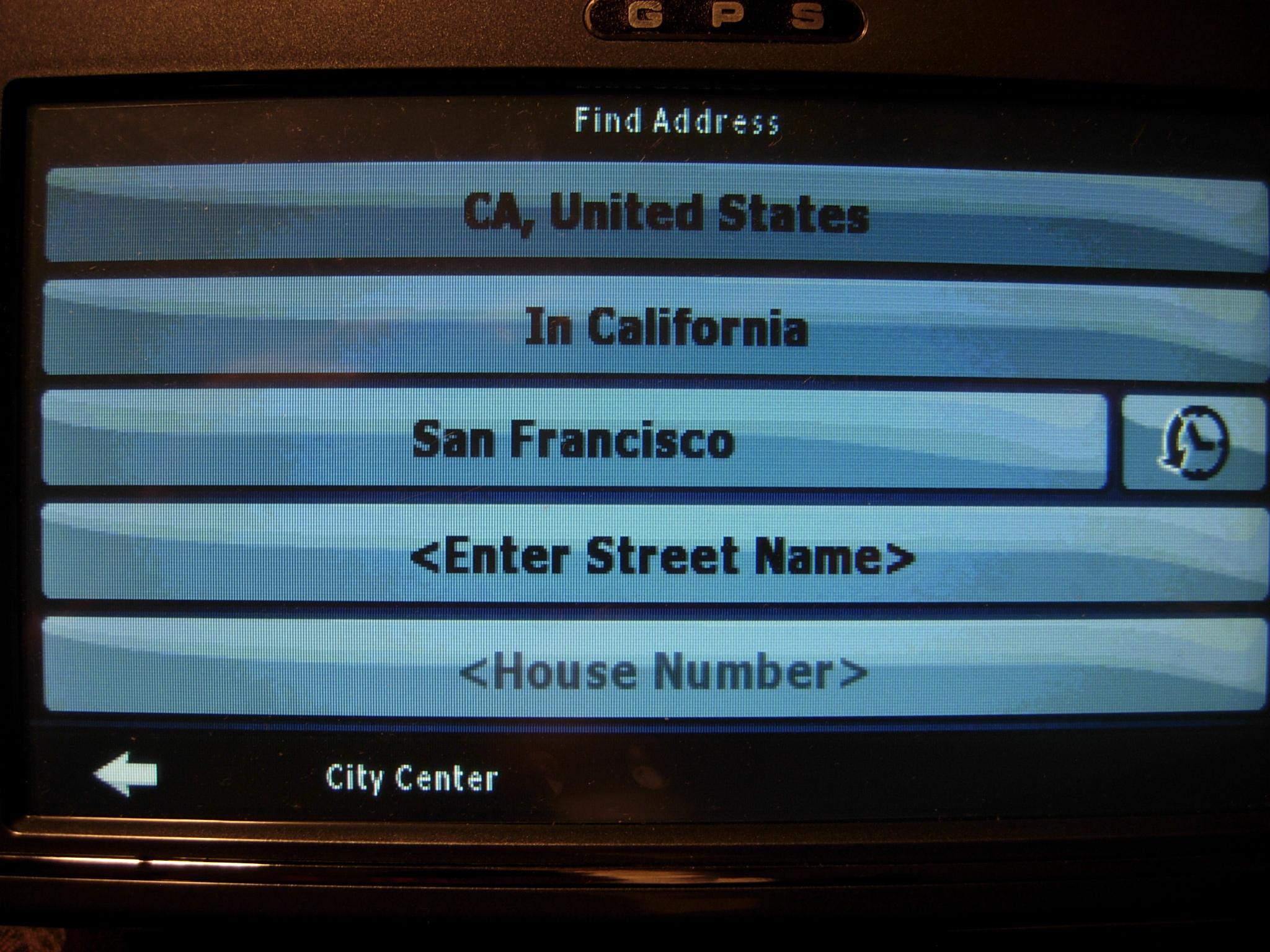
2. Initial regional location
From "Navigation Menu" ->Find -> Find Address (to select country, state, city and street) ->Set as
Destination (You might see "Cannot find path, Maps are isolated")-> Recalculate(upper left
conner, see image below) -> 2D
It might take 1-2 minute for the system to initial reset every time when re-enable the GPS, also you
need to be in a place where you can get GPS signal, so the system will initialize itself.
1. Enable the GPS.
Settings->GPS->(Manual GPS Configuration) click "Autodetect" which will Enable the GPSWhen
you see "GPS receiver has been detected successfully", then GPS is enabled. (See sample below)
2. Initial regional location
From "Navigation Menu" ->Find -> Find Address (to select country, state, city and street) ->Set as
Destination (You might see "Cannot find path, Maps are isolated")-> Recalculate(upper left
conner, see image below) -> 2D
It might take 1-2 minute for the system to initial reset every time when re-enable the GPS, also you
need to be in a place where you can get GPS signal, so the system will initialize itself.
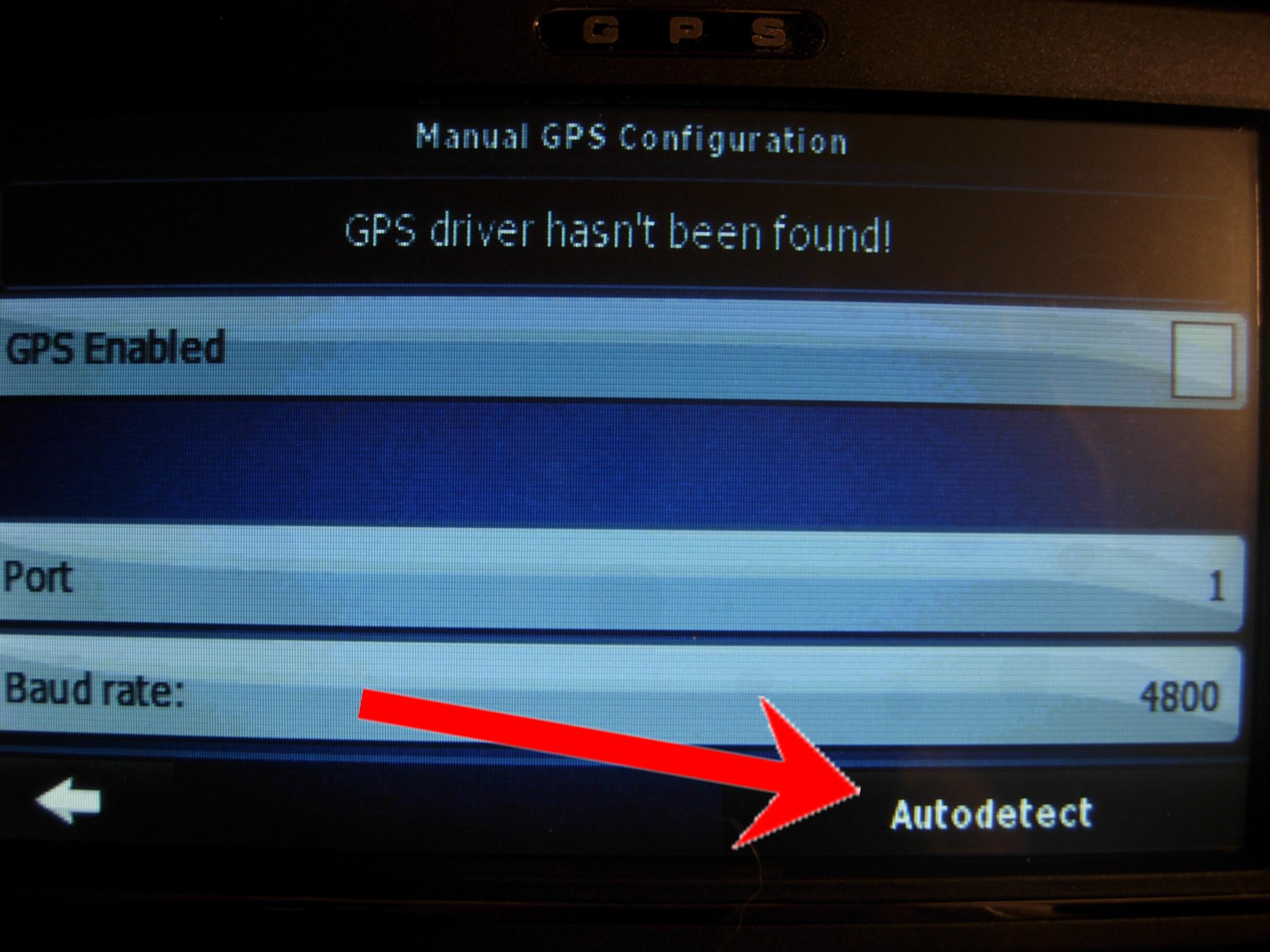

Enable the GPS
Address Recalculate




How to change Km to Mile, or Voice language?
Navigation Menu -> Regional -> Units
Navigation Menu -> Regional -> Units


Wireless Camera and Receiver Connection Quick View
1. Receiver and LCD light should be on when powered.
2. Camera LED should turn red when powered, if not, switch +,- wire. Or you need
to recheck the connection.
1. Receiver and LCD light should be on when powered.
2. Camera LED should turn red when powered, if not, switch +,- wire. Or you need
to recheck the connection.

How to select GPS software?
Normally, your GPS has been pre-configured to start the GPS from the right software. However, the following step
show you how to select which GPS software to use.
Settings->GPS->GPS Path-> select SD card program "\StorageCard\iGO8.exe"
Normally, your GPS has been pre-configured to start the GPS from the right software. However, the following step
show you how to select which GPS software to use.
Settings->GPS->GPS Path-> select SD card program "\StorageCard\iGO8.exe"
Why System switch from GPS to Camera view when plug in A/V jack?
Whenever your camera is power on, receiver will get the video signal, and trigger GPS switch to camera
view. If you do not want camera view, power off camera, or unplug the video input jet.
Whenever your camera is power on, receiver will get the video signal, and trigger GPS switch to camera
view. If you do not want camera view, power off camera, or unplug the video input jet.
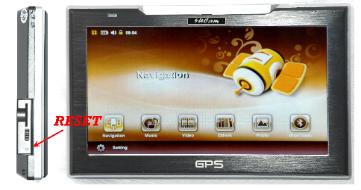
How reset GPS unit?
Normally, your GPS does not require reset. But in case you need to do so, please use a small pin to push the reset
button - see image below.
Normally, your GPS does not require reset. But in case you need to do so, please use a small pin to push the reset
button - see image below.
How to set date time and timezone?
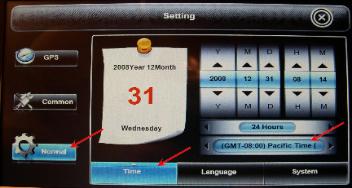
You need to set the time on System Level, then select timezone on GPS software, or apply it to GPS software.
Set Date Time on system level:
Exit GPS, then on system Programs Menu -> Setting -> Normal -> Time -> date time (see image below)
TImeZone i.e. GMT-8 (PST) GMT-7 (MST) GMS-6 (CST) GMT-5 (EST)
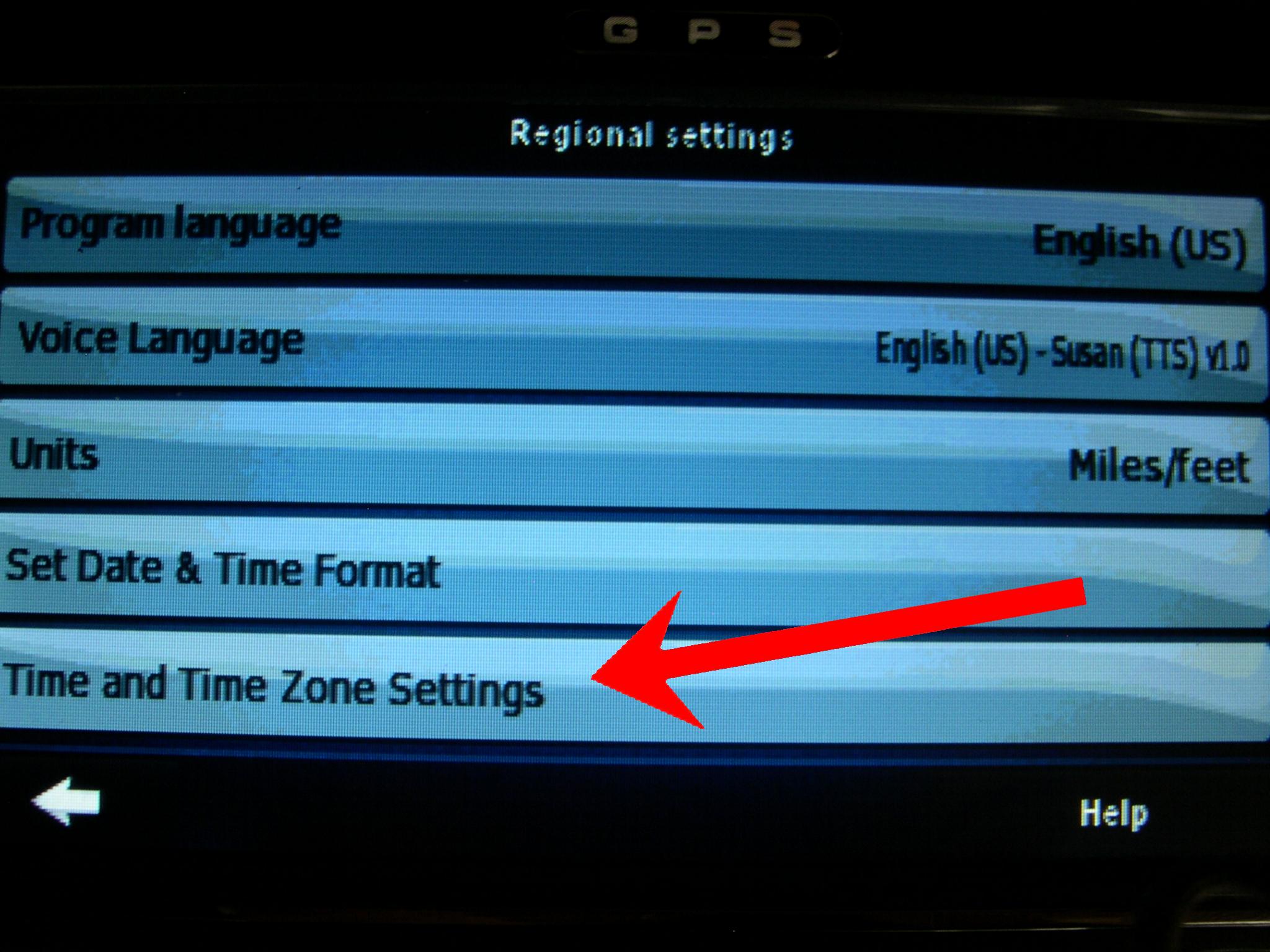
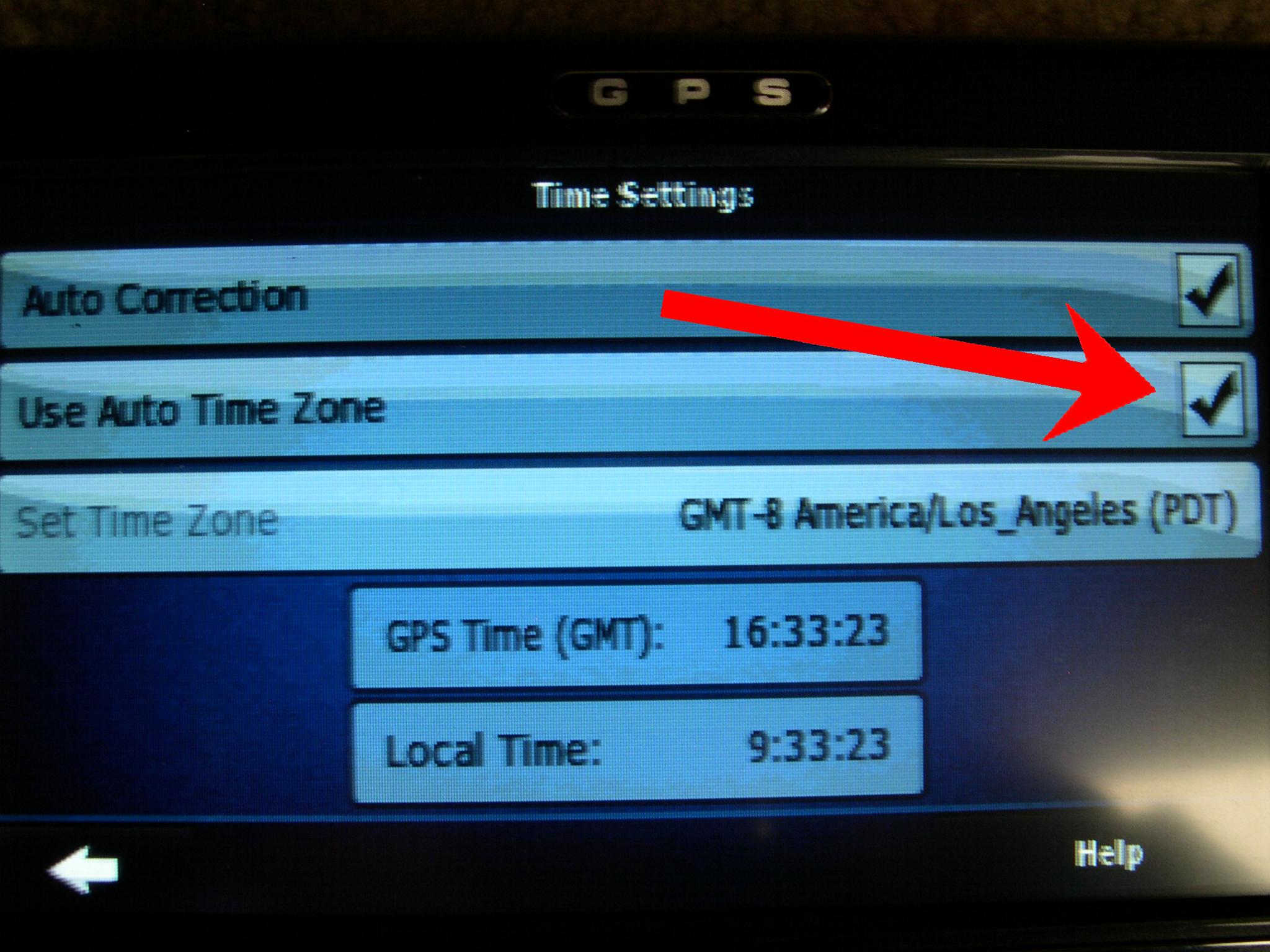
In Navigation Menu -> Settings -> Regional -> Time and Time Zone -> Use Auto Time Zone
(you can also de-select the "Use Auto Time Zone" and select the timezone on GPS level as well.)
You need to set the time on System Level, then select timezone on GPS software, or apply it to GPS software.
Set Date Time on system level:
Exit GPS, then on system Programs Menu -> Setting -> Normal -> Time -> date time (see image below)
TImeZone i.e. GMT-8 (PST) GMT-7 (MST) GMS-6 (CST) GMT-5 (EST)
In Navigation Menu -> Settings -> Regional -> Time and Time Zone -> Use Auto Time Zone
(you can also de-select the "Use Auto Time Zone" and select the timezone on GPS level as well.)
Why GPS help not working?
Due to space issue, help manual is not in the GPS SD Card. You can download from link below.
http://www.4ucam.com/download/iGO8_UserManual.pdf
Due to space issue, help manual is not in the GPS SD Card. You can download from link below.
http://www.4ucam.com/download/iGO8_UserManual.pdf
How to rotate camera image?
For 7" GPS see image below. (Setting->Common->AV-IN->rotaion
For 4.2" and 5", tap on upper left and lower right conner when in camera view.
For 7" GPS see image below. (Setting->Common->AV-IN->rotaion
For 4.2" and 5", tap on upper left and lower right conner when in camera view.

Why there is not TTS Text-To-Speech?
i.e. "In 1 mile, turn right onto Main St",
Navigation Menu -> Regional -> Voice Language -> English (US) Susan (TTS) v1.0 (Or any one with TTS)
See image sample below.
i.e. "In 1 mile, turn right onto Main St",
Navigation Menu -> Regional -> Voice Language -> English (US) Susan (TTS) v1.0 (Or any one with TTS)
See image sample below.

Why FM is not working?
For the 7" GPS: SETTING -> COMMON -> FM. If you only see a yellow radio with a orange cross (see picture below), that means you need to connect
the unit to 12V power to work.
For the 7" GPS: SETTING -> COMMON -> FM. If you only see a yellow radio with a orange cross (see picture below), that means you need to connect
the unit to 12V power to work.

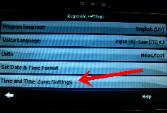
Why the time reset itself?
If GPS has never got signal, timezone will auto set to factory setting, and overwritten any setting.
Once GPS signal got updated, timezone will auto set. Make sure the following setting are in your system.
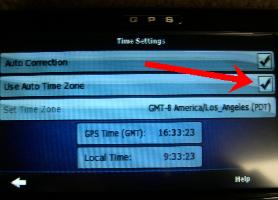
Setting->Regional -> Time and Time Zone Settings -> Usa Auto Time Zone (see picture below)
If GPS has never got signal, timezone will auto set to factory setting, and overwritten any setting.
Once GPS signal got updated, timezone will auto set. Make sure the following setting are in your system.
Setting->Regional -> Time and Time Zone Settings -> Usa Auto Time Zone (see picture below)
How to select different country?
System comes with default with couple of Canada addresses during testing.
For select USA or Canada map, see picture below.
Find->State,country -> select USA or Canada (or other country if apply) (see picture below)
System comes with default with couple of Canada addresses during testing.
For select USA or Canada map, see picture below.
Find->State,country -> select USA or Canada (or other country if apply) (see picture below)


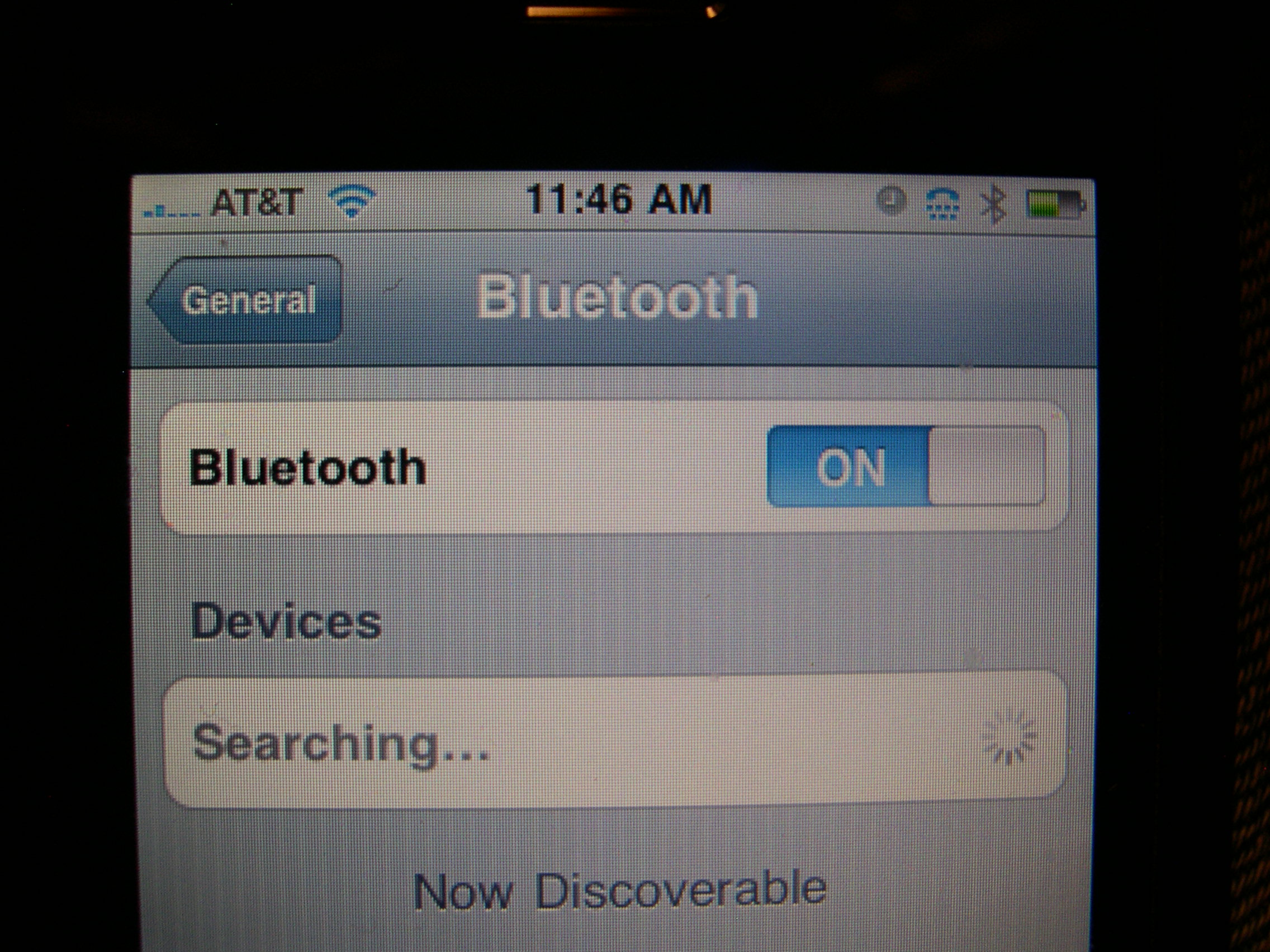
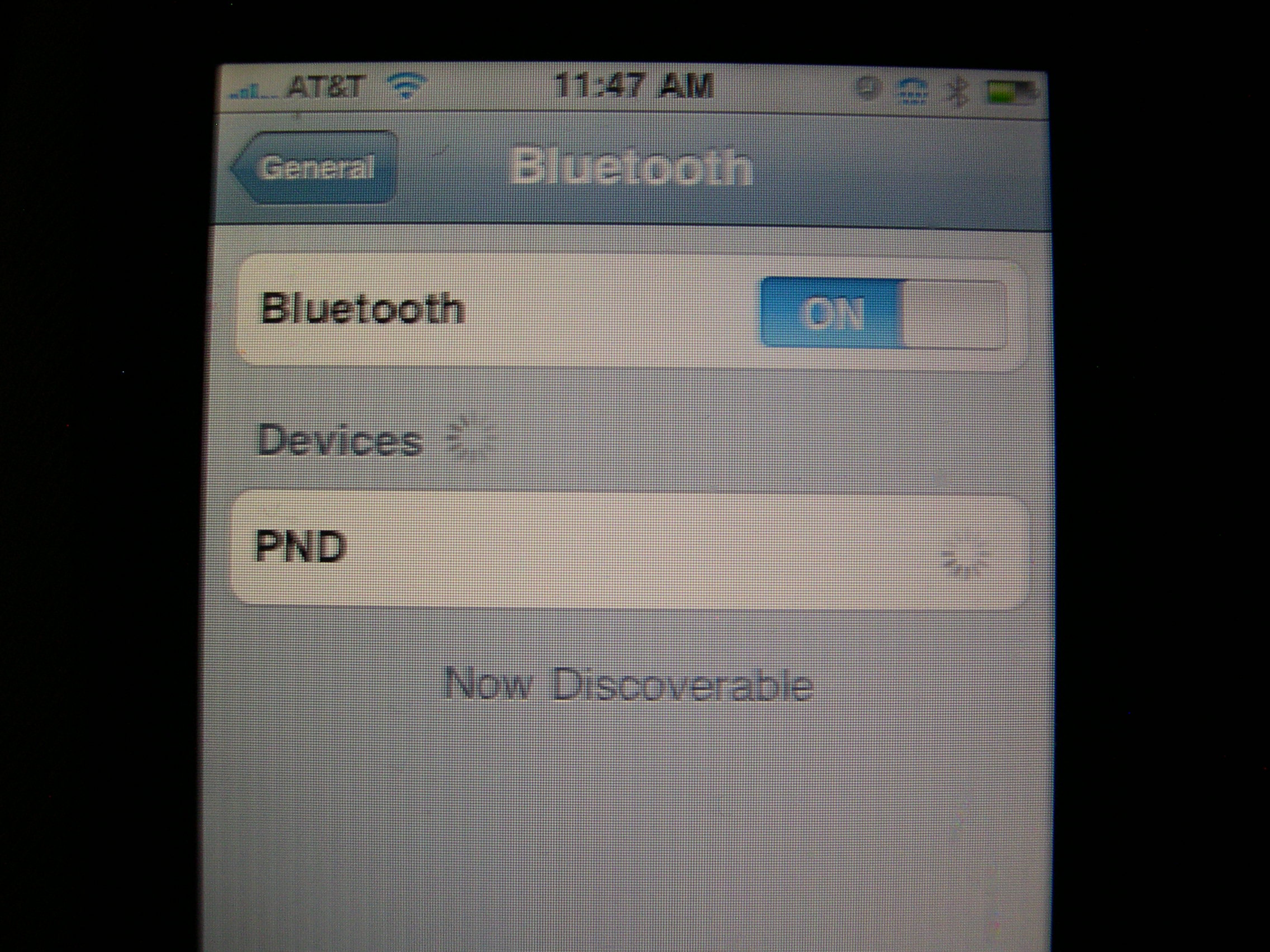
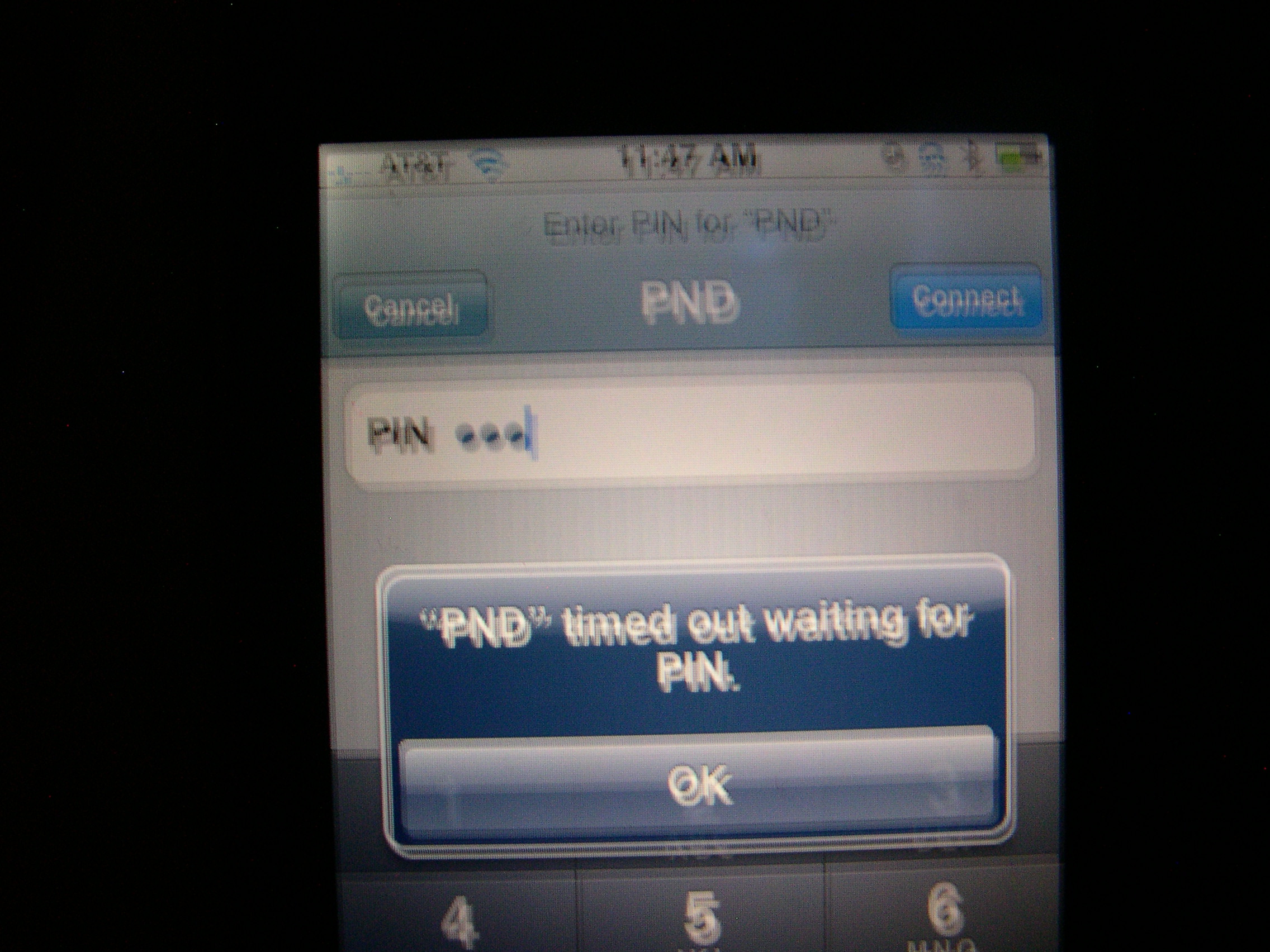
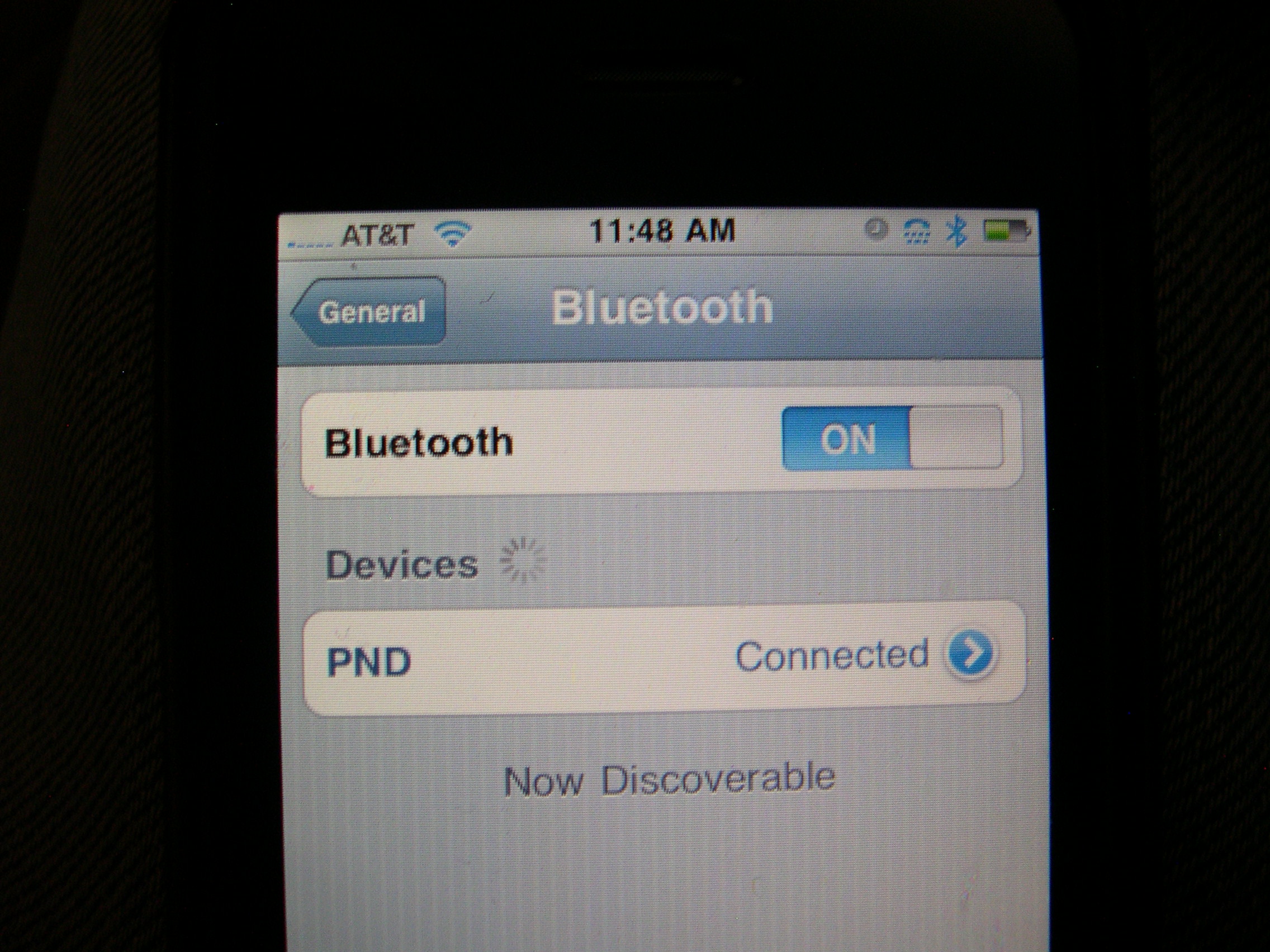
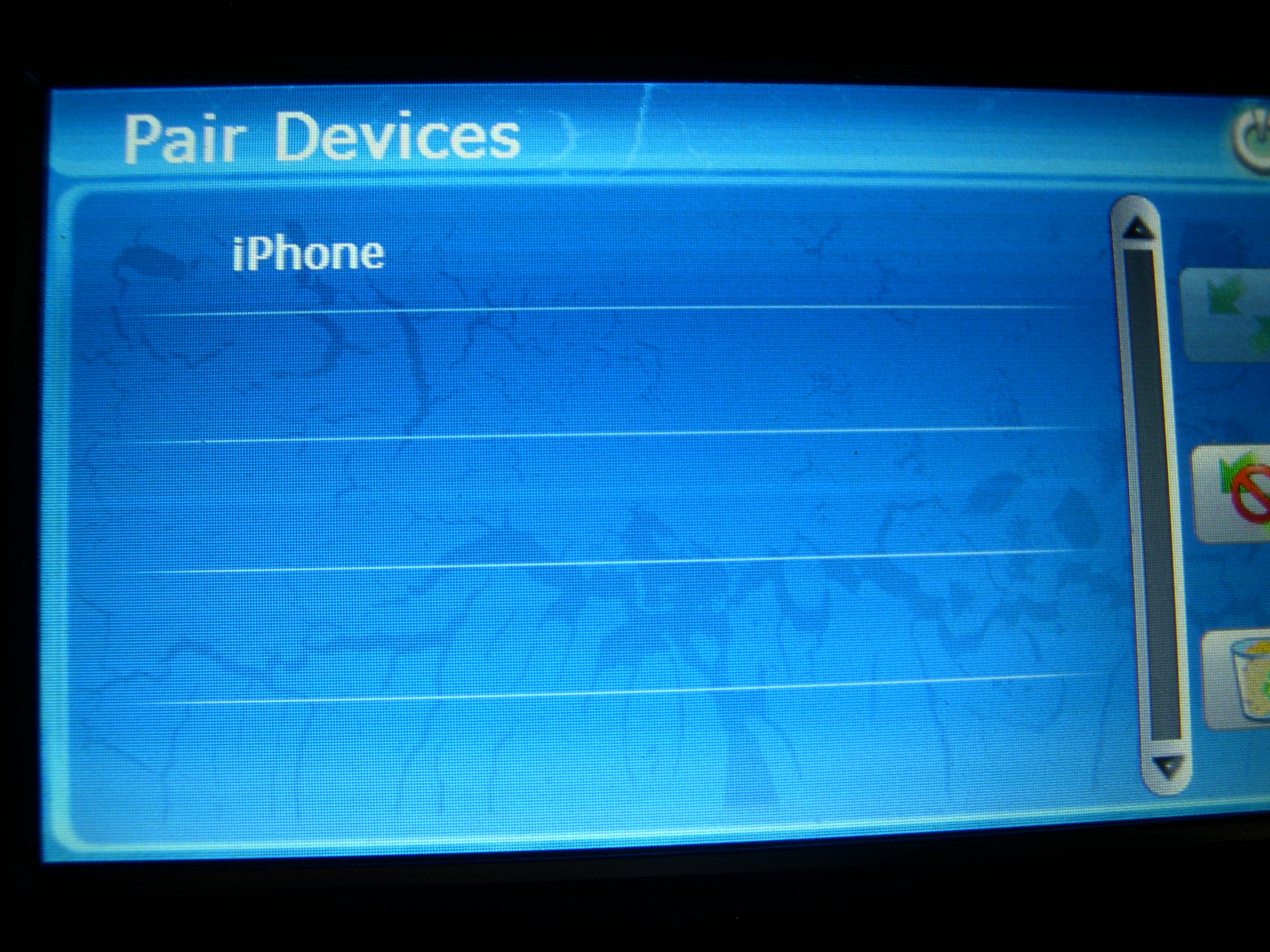
How to sync with bluetooth?
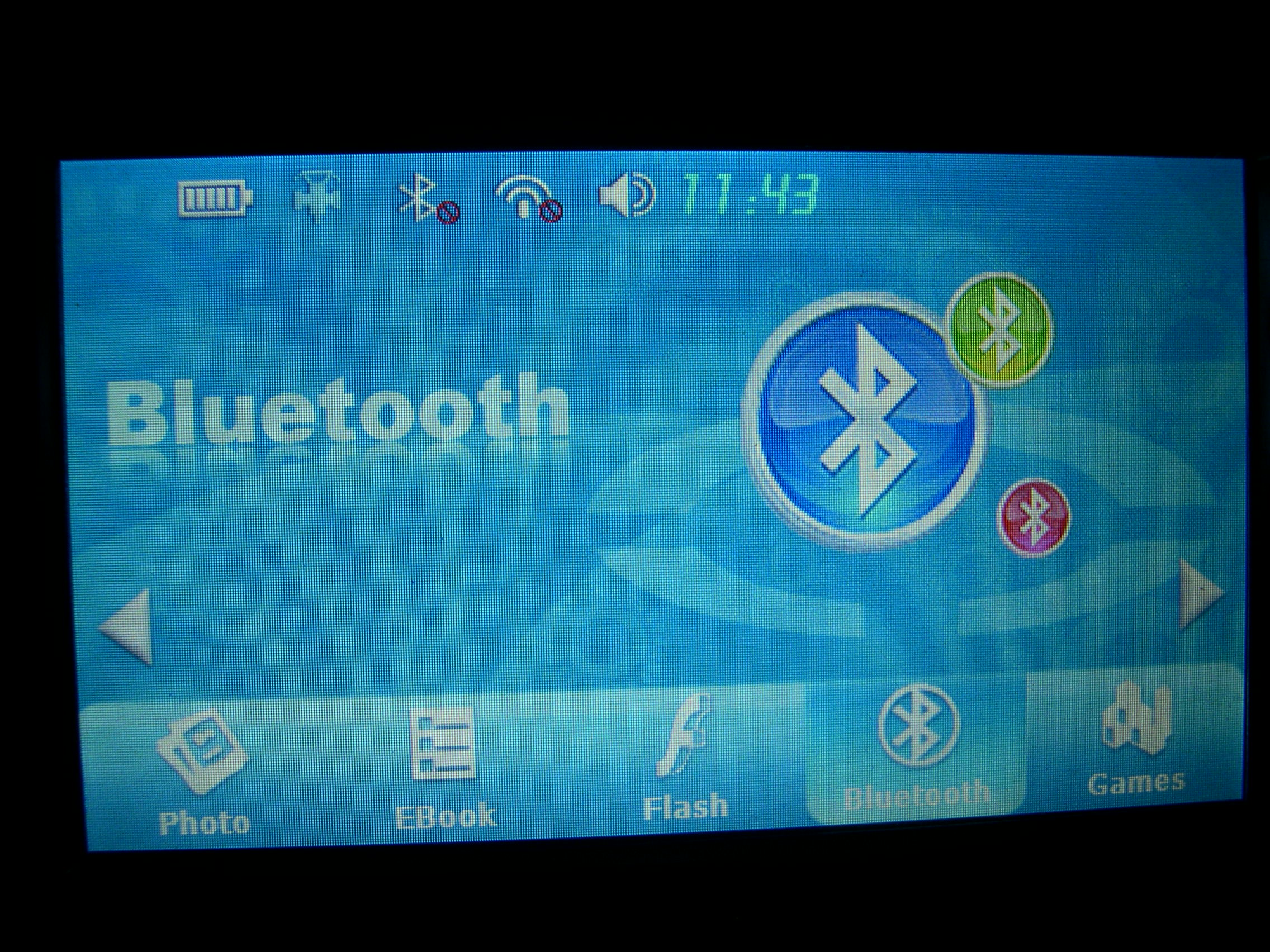
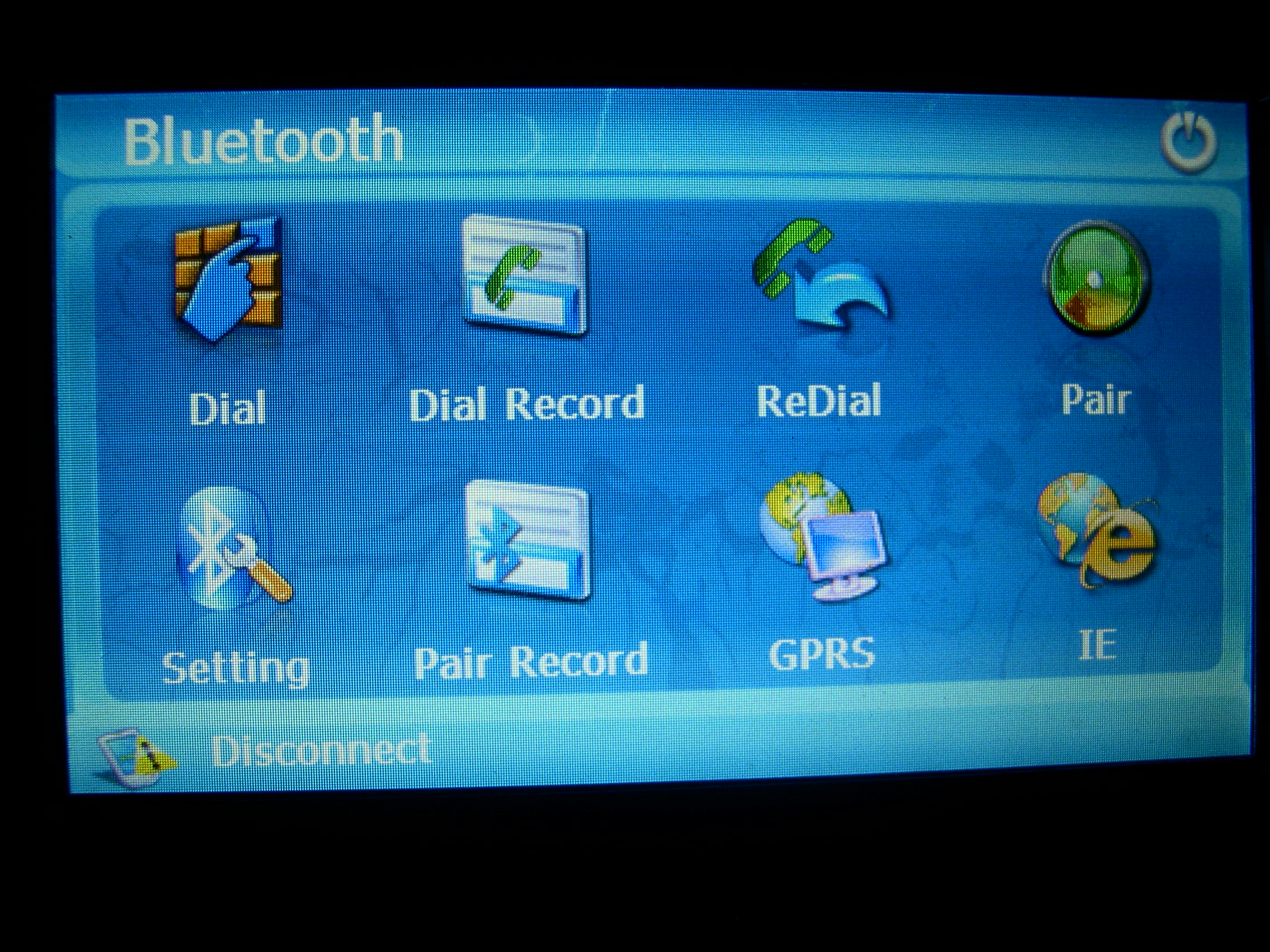
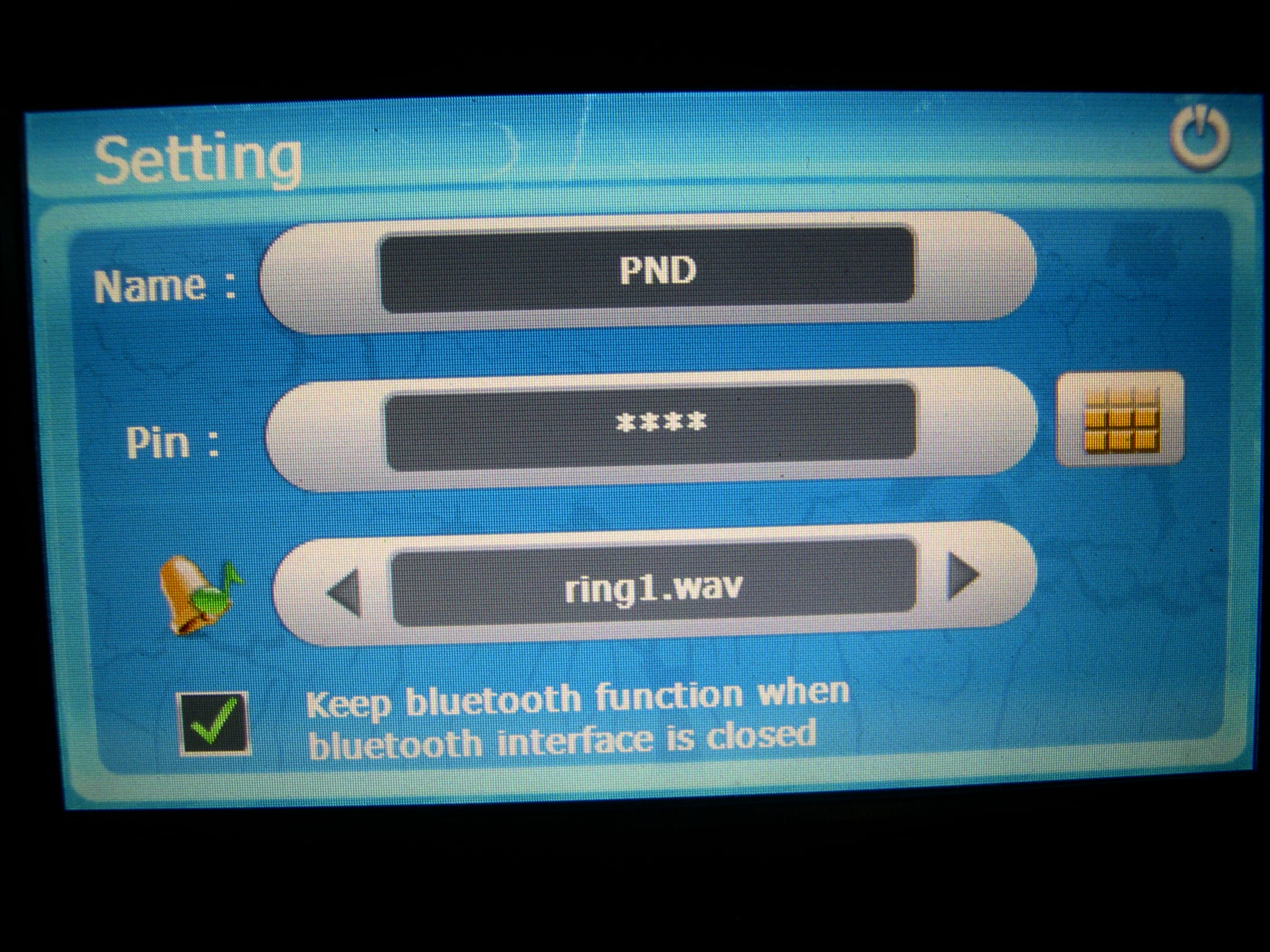
Exit the GPS mode, and onto the main menu, then follow the screen shots below.
Bluetooth -> pair -> setting ->
Then go to your phone (iPhone as example below)
Exit the GPS mode, and onto the main menu, then follow the screen shots below.
Bluetooth -> pair -> setting ->
Then go to your phone (iPhone as example below)
How do I set it so that when the power is turned off (engine off) the unit automatically goes to sleep mode?
Steps to modify GPS firmware, so the GPS will auto start and shut off, control by car key.
#1 Download the HT720.zip onto your computer, from link below.
http://www.4ucam.com/download/HT720.zip
Files is about 54MB
#2 Extract the zip files
#3 Copy all the files and BT directory onto a EMPTY micro-sd card.
(should have 13 files + BT directory)
#4 Power off the GPS, then insert the micro-sd card into the GPS.
#5 Start the GPS, and GPS will do the auto update. Takes about 4-5 min.
Once finish, replace the firmware micro-sd card with original GPS sd card.
Restart the GPS, and should be done.
Now you can test it.
Once unplug the power, GPS will shutdown in few seconds.
Once plug the power onto GPS, the unit will auto power up.
Steps to modify GPS firmware, so the GPS will auto start and shut off, control by car key.
#1 Download the HT720.zip onto your computer, from link below.
http://www.4ucam.com/download/HT720.zip
Files is about 54MB
#2 Extract the zip files
#3 Copy all the files and BT directory onto a EMPTY micro-sd card.
(should have 13 files + BT directory)
#4 Power off the GPS, then insert the micro-sd card into the GPS.
#5 Start the GPS, and GPS will do the auto update. Takes about 4-5 min.
Once finish, replace the firmware micro-sd card with original GPS sd card.
Restart the GPS, and should be done.
Now you can test it.
Once unplug the power, GPS will shutdown in few seconds.
Once plug the power onto GPS, the unit will auto power up.
1234 (default)
My touch screen is no function well, how do I recalibrate the touch screen?
Exit out of the GPS software, and on the main screen, select "Calibration", then use the stylus to touch and trace the moving "+" around the screen and to the center.
It might take 4-5 rounds, if the touch screen alignment is off a bit.
If still issue after recalibration and try to reset the unit, please contact us with your phone #.
Exit out of the GPS software, and on the main screen, select "Calibration", then use the stylus to touch and trace the moving "+" around the screen and to the center.
It might take 4-5 rounds, if the touch screen alignment is off a bit.
If still issue after recalibration and try to reset the unit, please contact us with your phone #.