


| All rights reserved. |
 | |  | |  | |  | |  |
Frequent Ask Questions:
Are signals able to cross walls and other obstacles?
Yes, they are. Microwave signals can cross walls but this transmission is not 100% guaranteed. It depends
on the thickness and building material of the walls. Most walls pose no problem for our cameras/transmitters
to send microwave signals. Nevertheless, walls made of metal frames or built with thick blocks can weaken
transmissions signals considerably.
Can you add another camera or monitor?
Yes. Additional cameras and monitors can be purchased from our accessories section, or contact us. Most
of our receivers support up to 4 cameras, and most of our cameras have 4 channels. Please refer to the
product specification for detail.
How do you view two rooms?
Make sure each room's transmitter (Camera) is set to different channel (1-4). You can then switch back and
forth between rooms by switching the channels on the receiver (Monitor).
How do I get the best range when using wireless video?
Here are some tips:
Place the transmitter where there are the fewest obstructions between it and the receiver.
Place the monitor/receiver higher than the camera/transmitter.
Try making adjustments to the locations of the camera/transmitter and monitor/receiver. Moving the location
in any direction by only a few feet will often improve the reception.
Will 2.4GHz telephone system interference my monitor?
This device, as well as all other wireless devices, may be subject to interference. Interference may be
caused by cell phones, Bluetooth headsets, Wi-Fi routers, power lines and other various electrical
equipment, etc. However, because most of our recievers/monitors have 3-4 channels, you can try changing
the channels on both the monitor and the camera to different channels, (CH1-4), but make sure monitor
and camera are on the same channel. Many 2.4GHz wireless cameras and transmitters do get interference
from 2.4GHz telephones. There is no telling what problem may occur because of all the telephone
manufacturers and the different telephones. The older 2.4GHz telephones occupy the entire 2.4GHz range.
The newer 2.4GHz Digital Spectrum telephones do not seem to cause interference. If you have a 2.4GHz
phone system or any other 2.4GHz system in your home or office and cannot get good video reception,
then unplug the power to your phone etc to determine if that is the problem.
Why are there so many interferences when the camera or transmitter is moved?
Even if the camera/transmitter is placed a few meters away from the monitor/receiver, it is frequent to
experience some interferences if for instance we move the camera/transmitter sharply as we walk. These
interferences are caused by the signals' high-directionality.
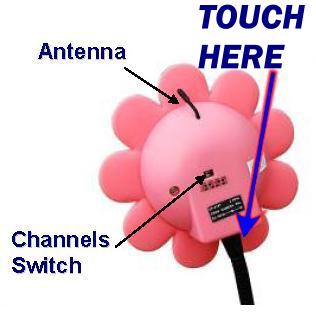
Why Daisy night light does not respond to touch switch on/off?
When Daisy head is over turned (left/right), the 'soft-touch' might become less sensitive because the
connection might get loose. You can touch the very top of the Daisy and it should work (see picture). Or
you slightly adjust the Daisy head's direction (left or right) to get the connection back. Momentarily
unplugging the power cord might do the trick as well.
How do you charge the battery on the Handheld/Camera unit?
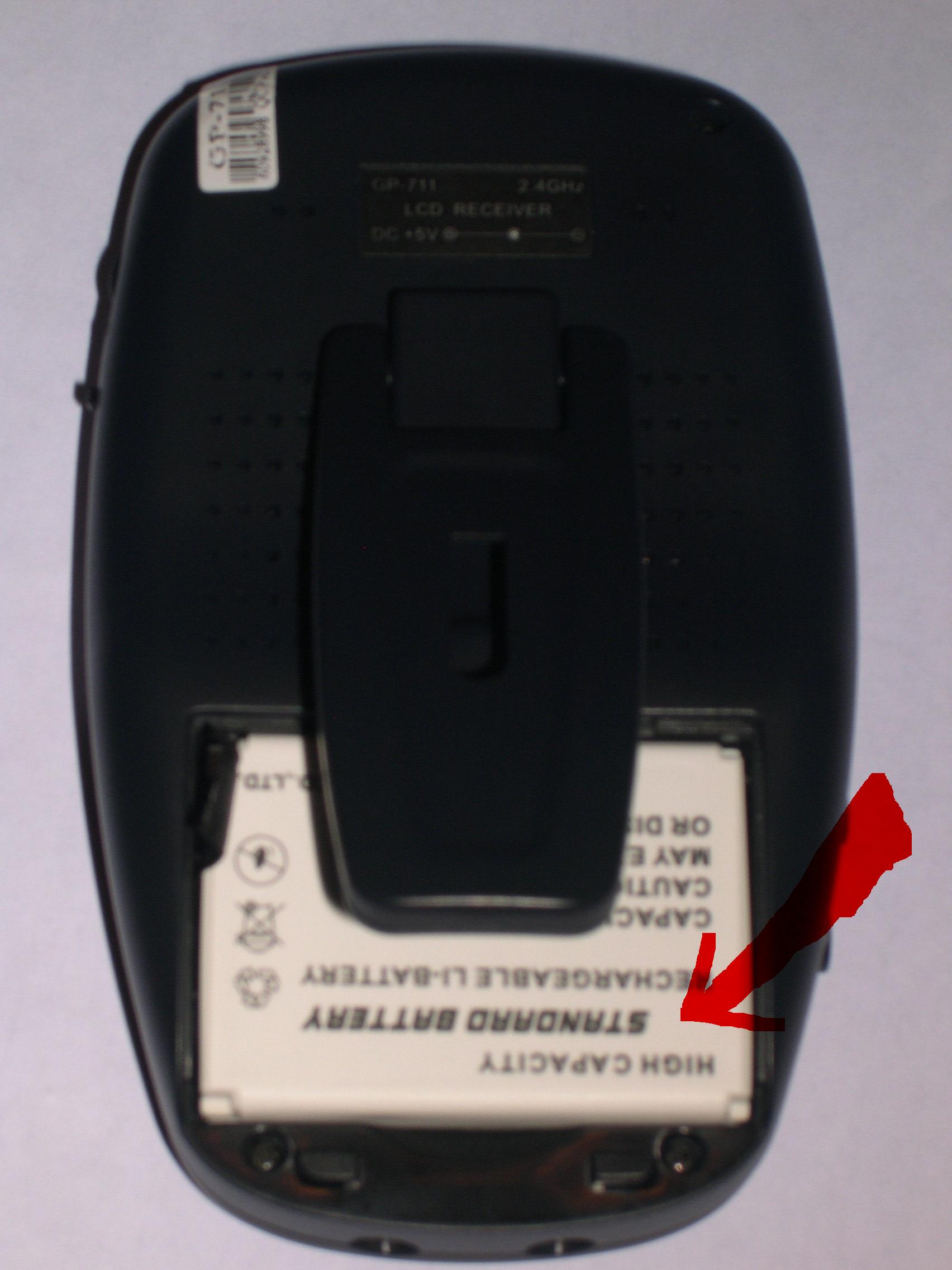
If your model's hand-held or camera comes with a rechargeable battery, plug in the A/C adaptor while it's
connected to the hand-held/camera unit and let it charge to restore the battery power. Please make sure
its polarities (+,-) match. Some Daisy monitors might not have a charge light, as some manuals might
indicate.
Will your product support European standard?
Please refer our International Page.
Will your ship to Canada and other country?
Please refer our International Page.
FOLLOWING ARE ONLY APPLY FOR USB CAMERA SERIES
Screen video/image is jumping up and down?
You need to set the correct Device Video Input Format NTSC. Do the following:
* Select Device tab in the Setup dialog box.
* On the menu bar, select Setup > Option > Device tab
* In the Video Input Standard drop-down menu, select the video output format. -> SELECT NTSC
How to record at certain time or only when motion detected?
On the Menu bar, select Record, then Schedule Setting. The Schedule dialog box appears. Further details
please refer to Schedule Events in InterVideo WinDVR help file.
QUESTIONS FOR BACKUP CAMERA SERIES
Click to go to backup camera demo testing page
What is the warranty of your product?
All our product carry warranty 30 days from us. 90 days from the factory.
We help to arrange all defect exchange within warranty coverage.
Are signals able to cross walls and other obstacles?
Yes, they are. Microwave signals can cross walls but this transmission is not 100% guaranteed. It depends
on the thickness and building material of the walls. Most walls pose no problem for our cameras/transmitters
to send microwave signals. Nevertheless, walls made of metal frames or built with thick blocks can weaken
transmissions signals considerably.
Can you add another camera or monitor?
Yes. Additional cameras and monitors can be purchased from our accessories section, or contact us. Most
of our receivers support up to 4 cameras, and most of our cameras have 4 channels. Please refer to the
product specification for detail.
How do you view two rooms?
Make sure each room's transmitter (Camera) is set to different channel (1-4). You can then switch back and
forth between rooms by switching the channels on the receiver (Monitor).
How do I get the best range when using wireless video?
Here are some tips:
Place the transmitter where there are the fewest obstructions between it and the receiver.
Place the monitor/receiver higher than the camera/transmitter.
Try making adjustments to the locations of the camera/transmitter and monitor/receiver. Moving the location
in any direction by only a few feet will often improve the reception.
Will 2.4GHz telephone system interference my monitor?
This device, as well as all other wireless devices, may be subject to interference. Interference may be
caused by cell phones, Bluetooth headsets, Wi-Fi routers, power lines and other various electrical
equipment, etc. However, because most of our recievers/monitors have 3-4 channels, you can try changing
the channels on both the monitor and the camera to different channels, (CH1-4), but make sure monitor
and camera are on the same channel. Many 2.4GHz wireless cameras and transmitters do get interference
from 2.4GHz telephones. There is no telling what problem may occur because of all the telephone
manufacturers and the different telephones. The older 2.4GHz telephones occupy the entire 2.4GHz range.
The newer 2.4GHz Digital Spectrum telephones do not seem to cause interference. If you have a 2.4GHz
phone system or any other 2.4GHz system in your home or office and cannot get good video reception,
then unplug the power to your phone etc to determine if that is the problem.
Why are there so many interferences when the camera or transmitter is moved?
Even if the camera/transmitter is placed a few meters away from the monitor/receiver, it is frequent to
experience some interferences if for instance we move the camera/transmitter sharply as we walk. These
interferences are caused by the signals' high-directionality.
Why Daisy night light does not respond to touch switch on/off?
When Daisy head is over turned (left/right), the 'soft-touch' might become less sensitive because the
connection might get loose. You can touch the very top of the Daisy and it should work (see picture). Or
you slightly adjust the Daisy head's direction (left or right) to get the connection back. Momentarily
unplugging the power cord might do the trick as well.
How do you charge the battery on the Handheld/Camera unit?
If your model's hand-held or camera comes with a rechargeable battery, plug in the A/C adaptor while it's
connected to the hand-held/camera unit and let it charge to restore the battery power. Please make sure
its polarities (+,-) match. Some Daisy monitors might not have a charge light, as some manuals might
indicate.
Will your product support European standard?
Please refer our International Page.
Will your ship to Canada and other country?
Please refer our International Page.
FOLLOWING ARE ONLY APPLY FOR USB CAMERA SERIES
Screen video/image is jumping up and down?
You need to set the correct Device Video Input Format NTSC. Do the following:
* Select Device tab in the Setup dialog box.
* On the menu bar, select Setup > Option > Device tab
* In the Video Input Standard drop-down menu, select the video output format. -> SELECT NTSC
How to record at certain time or only when motion detected?
On the Menu bar, select Record, then Schedule Setting. The Schedule dialog box appears. Further details
please refer to Schedule Events in InterVideo WinDVR help file.
QUESTIONS FOR BACKUP CAMERA SERIES
Click to go to backup camera demo testing page
What is the warranty of your product?
All our product carry warranty 30 days from us. 90 days from the factory.
We help to arrange all defect exchange within warranty coverage.

Return Policy:
4UCam provides 100% satisfaction guaranty. We have 30 days money back policy. If you are not happy with your purchase,
send it back for a full refund of the product price, as long as the item is in sellable condition we will credit your account within
3-5 business days of receipt.
4UCam provides 100% satisfaction guaranty. We have 30 days money back policy. If you are not happy with your purchase,
send it back for a full refund of the product price, as long as the item is in sellable condition we will credit your account within
3-5 business days of receipt.