Dear customer,
Thank you for selecting our WiFi Car Backup Camera System for the iPhone and Andriod.
This product is a new concept, and you are one of the very few people in the world who have a iPhone/Andriod backup camera system.
We hope you like this product and be a proud owner.
A few things to note and remember.
1. Instead of connecting the backup camera onto your reverse light, please connect to Running light (or engine light) for the power. So
the camera will be on whenever the engine key is turned.
This is because the WiFi camera take about 1-2 second to boot up, so connecting to the running light will enable you to see the
camera earlier and see the camera whenever you want (not just during reverse).
2. The WiFi camera and your smart phone take time to process the video image, so there is video display latency. The image you see
on your smart phone is delayed about 0.5-0.7 seconds. Please use the backup camera as a reference only.
3. If you try to connect the smart phone to view the camera video at home or where your smart phone is defaulted to connect to another
wifi source, you will need to switch your smart phone WiFi to point to the WiFiCamera first, then see the camera on your smart phone.
i.e. when using iPhone, go to: Settings -> WiFi -> WiFiCamera
If you are away from your home WiFi network signal, then your smart phone will automatically connect to WiFiCamera once the camera
is powered on.
We would suggest you to do a trial run and get familiar with the WiFi camera and your smart phone, before you start to drill holes onto
your car for the actual installation.
If you have any questions, please contact us: supports@4ucam.com
Regards,
4ucam.com - Extend your vision
Thank you for selecting our WiFi Car Backup Camera System for the iPhone and Andriod.
This product is a new concept, and you are one of the very few people in the world who have a iPhone/Andriod backup camera system.
We hope you like this product and be a proud owner.
A few things to note and remember.
1. Instead of connecting the backup camera onto your reverse light, please connect to Running light (or engine light) for the power. So
the camera will be on whenever the engine key is turned.
This is because the WiFi camera take about 1-2 second to boot up, so connecting to the running light will enable you to see the
camera earlier and see the camera whenever you want (not just during reverse).
2. The WiFi camera and your smart phone take time to process the video image, so there is video display latency. The image you see
on your smart phone is delayed about 0.5-0.7 seconds. Please use the backup camera as a reference only.
3. If you try to connect the smart phone to view the camera video at home or where your smart phone is defaulted to connect to another
wifi source, you will need to switch your smart phone WiFi to point to the WiFiCamera first, then see the camera on your smart phone.
i.e. when using iPhone, go to: Settings -> WiFi -> WiFiCamera
If you are away from your home WiFi network signal, then your smart phone will automatically connect to WiFiCamera once the camera
is powered on.
We would suggest you to do a trial run and get familiar with the WiFi camera and your smart phone, before you start to drill holes onto
your car for the actual installation.
If you have any questions, please contact us: supports@4ucam.com
Regards,
4ucam.com - Extend your vision
Accessories :
Car Cigarette Lighter Cables for WiFi camera
Item#:AZ_car_adapter
$12.99
Item#:AZ_car_adapter
$12.99
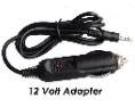
You can use this car cigarette lighter adapter to provide
the power for the WiFi camera and transmitter, instead of
connecting (hardwire) to the car 12V power.
the power for the WiFi camera and transmitter, instead of
connecting (hardwire) to the car 12V power.
110V-240V A/C adapter for 8902WiFi
Item#:8902_AC
$14.99
Item#:8902_AC
$14.99
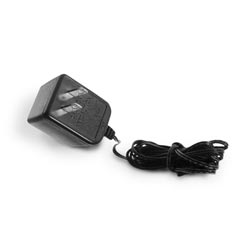
You can get a A/C adapter to power the WiFi camera, so
you can see the camera on your smart phone anywhere in
your home, or where there is A/C power available.
you can see the camera on your smart phone anywhere in
your home, or where there is A/C power available.
Be our promoter.
If you like our product, take a video and upload it onto YouTube and mention our name, we will provide you a $50
discount for your next purchase.
Show our product to your friend, and if they purchase it, let us know your friend's full name, and we will provide $5
cash/Paypal to you, and a $5 discount for your friend.
If you like our product, take a video and upload it onto YouTube and mention our name, we will provide you a $50
discount for your next purchase.
Show our product to your friend, and if they purchase it, let us know your friend's full name, and we will provide $5
cash/Paypal to you, and a $5 discount for your friend.



 | |  | |  | |  | |  |


If you have question on the installation, or problem to connect onto the wifi camera, please see steps at the
end of this page.
end of this page.

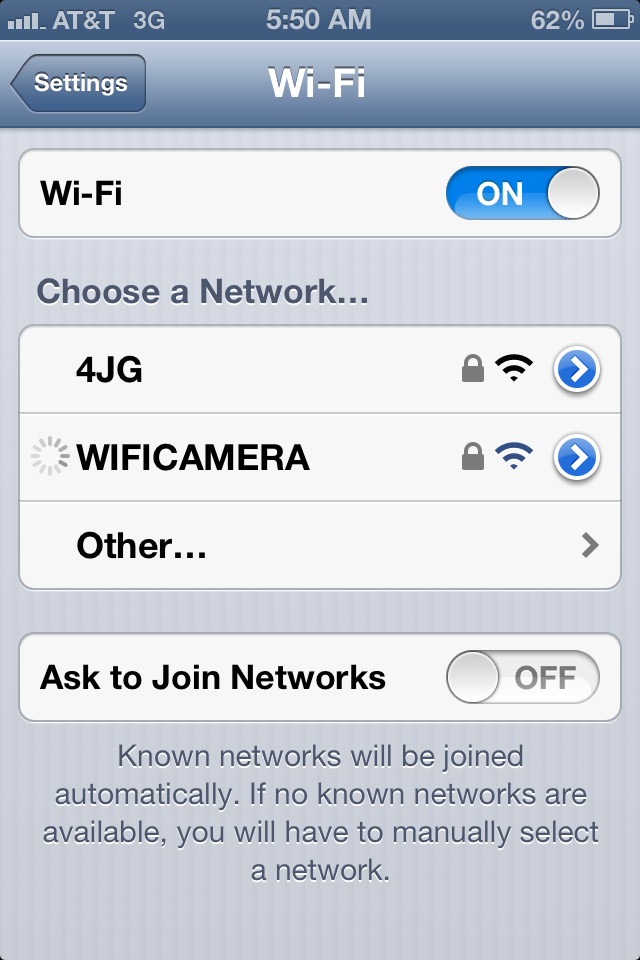
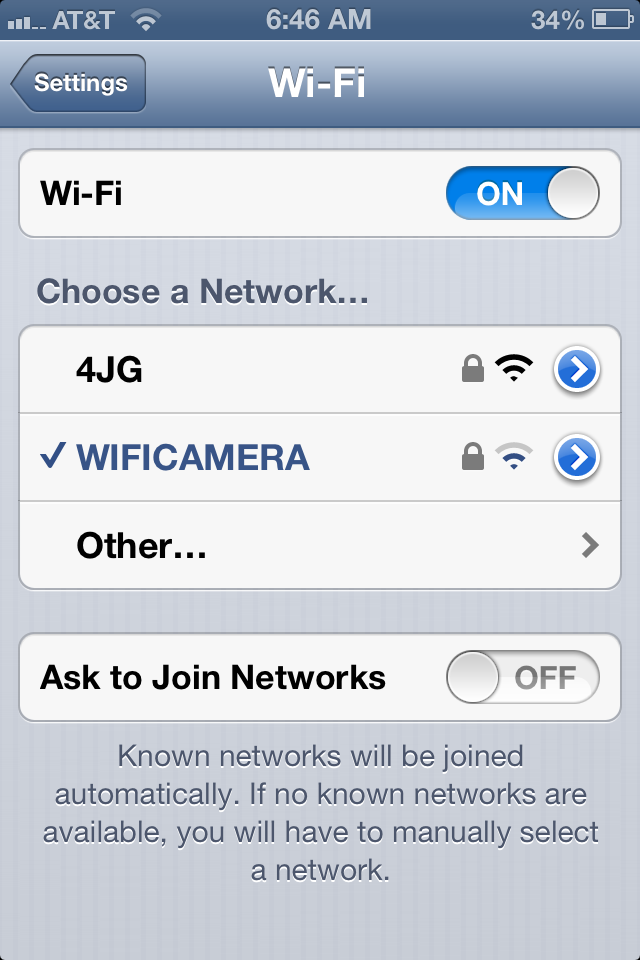
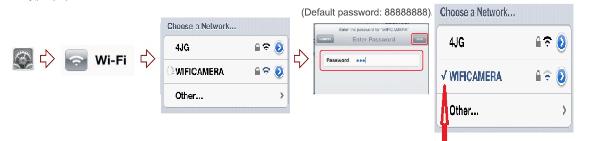
1. Find and download the APP.
2. Power up the Camera and transmitter.
3. Select the WIFICAMERA.
(for each new phone to connect to wifi camera, password require on initial connection/setup - default password: 88888888).
4. Once Wi-Fi is connected to WIFICAMERA (see 'check' on the screen next to WIFICAMERA), then your phone is connected to the camera
5. Start the RFK WiFi APP and you will see the camera on your small phone.
2. Power up the Camera and transmitter.
3. Select the WIFICAMERA.
(for each new phone to connect to wifi camera, password require on initial connection/setup - default password: 88888888).
4. Once Wi-Fi is connected to WIFICAMERA (see 'check' on the screen next to WIFICAMERA), then your phone is connected to the camera
5. Start the RFK WiFi APP and you will see the camera on your small phone.
Here is the steps to install the software and see the camera. Detail refer to the user manual.
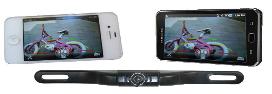
iPhone Android iPad
WIFI Backup camera
Item#: 8909WiFi
Listed Price: $169.99
Now $144.95
WIFI Backup camera
Item#: 8909WiFi
Listed Price: $169.99
Now $144.95
If you have trouble to see the wifi camera on your smart phone, please see WIFI App Camera
Connection Troubleshooting below.
1. If you have problem to download and install the WIFI APP, you can try both APP below, or try on other device.
IN APP STORE: search for "RFK WIFI" or "Sight WIFI"
2. Do not see WIFICAMERA under your device Wi-Fi searching list.
Please make sure 12V power connect onto the transmitter, and transmitter LED light should turn from Red to Green after 2-3
second. If there is no power light on transmitter, please try to connect the transmitter directly onto your car battery. (red to +, black
to -).
If transmitter LED does not turn into red, please try reset the transmitter, by push the RESET on the transmitter with a pin.
If transmitter never have power, or never turn to Green after reset, please contact us.
3. You selected the WIFICAMERA on your network listing, and have problem to connect/joint onto WIFICAMERA
network.
You need to make sure you input the password for initial connection, password is 88888888
If still problem to joint after the correct password, please try reset the transmitter, or try to use other device
Contact us, if you fail to joint the network, after you try RESET, and tried to use other device, and still no working.
When you push RESET button, please make sure you push and hold for about 2-3 seconds, until the LED light turn off from green,
then release the Reset button.
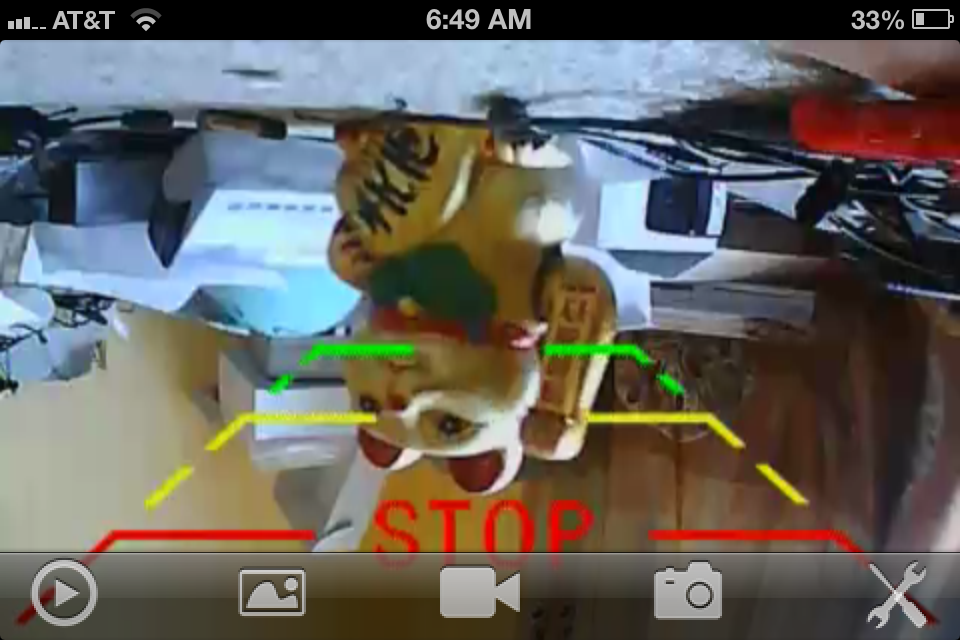
4. After you jointed the WIFICAMERA network, you do not see the camera video on your device.
If you see the left screen below, with the "X" on the center, that indicated the WIFICAMERA network is not connected.
Please verify network connection, and make sure you select WIFICAMERA on your device network selection.
Also make sure the transmitter LED is Green.
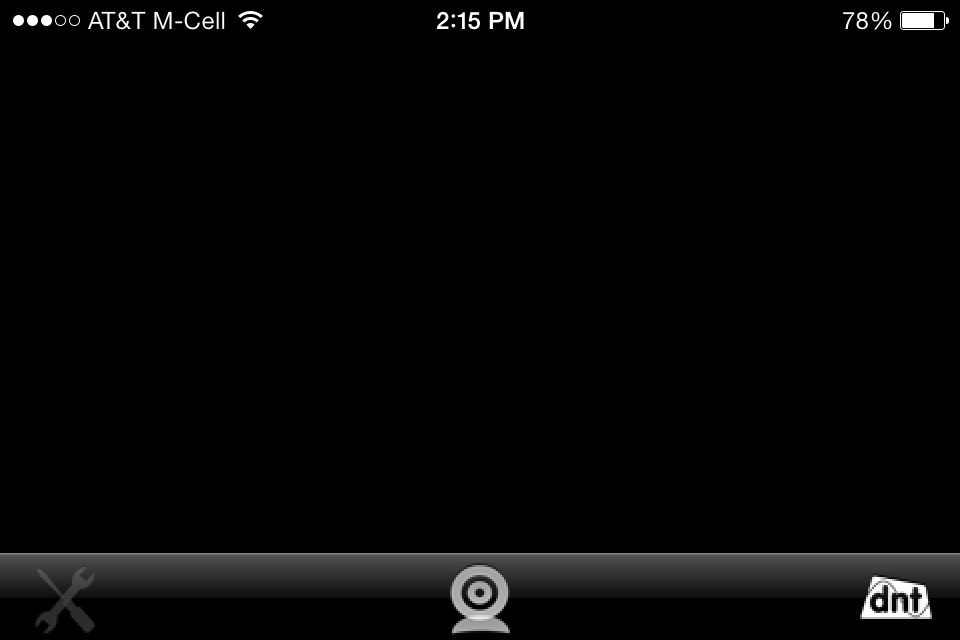
If you see a screen, without "X" mark (right image above), but only black. And you might also see a short Red/Orange Flash on
your screen shortly after you start the WiFi App, then, it means the transmitter is working, however, there is no video signal input
into the transmitter.
1) If you use any power source other than your car battery (i.e. use A/C adapter, battery charger or car cigarette lighter adapter
for power), please connect the transmitter directly onto your car battery for testing. (when Voltage below 12V might not work)
2) Please check and verify the transmitter and camera connection is good, and also verify the camera is getting the power [if you
use our license plate camera, you can cover the camera center (block the light from outside), you should see the IR LED turns
dark red, 2 and 3 IR LED on each side, and stay red. If not red, then double check the connection, by disconnect the 4pin plug,
line the arrow up, and plug ALL-THE-WAY in on the connection. If still problem, please contact us.
Connection Troubleshooting below.
1. If you have problem to download and install the WIFI APP, you can try both APP below, or try on other device.
IN APP STORE: search for "RFK WIFI" or "Sight WIFI"
2. Do not see WIFICAMERA under your device Wi-Fi searching list.
Please make sure 12V power connect onto the transmitter, and transmitter LED light should turn from Red to Green after 2-3
second. If there is no power light on transmitter, please try to connect the transmitter directly onto your car battery. (red to +, black
to -).
If transmitter LED does not turn into red, please try reset the transmitter, by push the RESET on the transmitter with a pin.
If transmitter never have power, or never turn to Green after reset, please contact us.
3. You selected the WIFICAMERA on your network listing, and have problem to connect/joint onto WIFICAMERA
network.
You need to make sure you input the password for initial connection, password is 88888888
If still problem to joint after the correct password, please try reset the transmitter, or try to use other device
Contact us, if you fail to joint the network, after you try RESET, and tried to use other device, and still no working.
When you push RESET button, please make sure you push and hold for about 2-3 seconds, until the LED light turn off from green,
then release the Reset button.
4. After you jointed the WIFICAMERA network, you do not see the camera video on your device.
If you see the left screen below, with the "X" on the center, that indicated the WIFICAMERA network is not connected.
Please verify network connection, and make sure you select WIFICAMERA on your device network selection.
Also make sure the transmitter LED is Green.
If you see a screen, without "X" mark (right image above), but only black. And you might also see a short Red/Orange Flash on
your screen shortly after you start the WiFi App, then, it means the transmitter is working, however, there is no video signal input
into the transmitter.
1) If you use any power source other than your car battery (i.e. use A/C adapter, battery charger or car cigarette lighter adapter
for power), please connect the transmitter directly onto your car battery for testing. (when Voltage below 12V might not work)
2) Please check and verify the transmitter and camera connection is good, and also verify the camera is getting the power [if you
use our license plate camera, you can cover the camera center (block the light from outside), you should see the IR LED turns
dark red, 2 and 3 IR LED on each side, and stay red. If not red, then double check the connection, by disconnect the 4pin plug,
line the arrow up, and plug ALL-THE-WAY in on the connection. If still problem, please contact us.

5. If you are experiencing a problem where your phone or tablet is disconnecting from your camera's Wi-Fi network
this FAQ should help to resolve the problem.
Here are some of the messages that you may receive on your mobile device:
• Avoided poor internet connection
• Internet connection is unstable
• Internet not available
• Network disabled, poor connection
• Network disabled because internet connection is slow
• Poor Connection / Connection Lost
Follow these steps to try and resolve the problem:
1. Forget the camera's wireless network via the mobile devices wireless settings, the re-add the camera's wireless network.
2. There are a few Wi-Fi settings that will make a difference here. You can find them by going to the Advanced Wi-Fi
Settings on the device. Note that not all devices will have all of these settings.
o "Check for Internet service" - If present make sure this setting is unchecked. If this is checked the phone with try to verify if
the access point has internet connectivity. Since the camera's Wi-Fi does not have internet, it results in an error. Example
device: Samsung S3, S4.
o "Auto network switch" - If present try disabling this setting. If this setting is enabled it will prompt the camera to
automatically switch to a Wi-Fi network with an internet connection. Since the camera's Wi-Fi does not have internet, it switches
to a different Wi-Fi network. Example device: Samsung Note 3.
o "Smart Mode" - This should be turned OFF. When enabled the device drops WiFi App connections when within range of a
more popular network such as a Home or Office network. Example device: Samsung Galaxy S4.
o "Avoid poor connection" - If present, make sure that this setting is checked. Example device: Nexus 5.
o "Auto connect" - This setting allows the phone to automatically connect to known Wi-Fi networks. If present, try disabling
this. Example device: Samsung Galaxy S3.
o "Sprint Connections Optimizer" - This option is on Sprint phones only. If present, try turing this off. This setting forces an
auto-connect to 4G, over-riding Wi-Fi in a small number of locations on the Sprint network. You can find this by going to Settings
> More Settings > Mobile Networks > Connections Optimizer > Uncheck "Sprint Connections Optimizer".
6. If you see the video, but has delay over 0.5 second
1. Make sure you test the unit away from location that has many Wi-Fi signal, i.e. in office, or at home office. Please test on the
street.
2. Make sure your transmitter is no too far away from your mobile device. If the distance is over 20 feet, please get the extension
cord to move the transmitter closer to the front to gain a better signal
3. Please avoid to hike the transmitter inside a closed metal cage, and try to move the transmitter closer, up higher, and less
obstruction to your mobile device.
4. Please also try other mobile device.
Here is steps specially prepare for [ Galaxy S3, Galaxy S4, Galaxy Note 3, and some other Samsung phones ] users
setting:
The Galaxy S3, Galaxy S4, Galaxy Note 3, and some other Samsung phones have a connection feature known as “Auto Network
Switch” which may cause the "Network disabled because Internet connection is slow" error to occur. This "Auto Network Switch"
setting will need to be disabled in order to connect to the card.
To do this:
Open your phones settings
Press the Menu button on the phone
Select Advanced and scroll down to the Auto Network Switch option
Uncheck the Auto Network Switch option
Now exit the settings, take a few new pictures and your device should connect to the Eye-Fi network and transfer.
"Smart Mode" - This should be turned OFF.
To do this:
If you go to settings, then connections, then click on the wifi option, not to turn it on but to select it from the menu, it will take you
to the next screen that allows you to disable "smart mode"
"Auto connect" - If present, try disabling
There is a setting under Wi-Fi Settings called "Auto Network Switch" that Samsung has added that looks for "unstable" networks,
and will automatically disconnect and revert to mobile data. Unfortunately, since our device has no internet connection, Samsung
reports it as un unstable network and immediately disconnects. So, need to disable this setting.
To do this:
Go to Menu - Settings - More Settings - Mobile Networks - Connection Optimizer and uncheck Sprint Connection Optimizer.
(on the Sprint network only)
this FAQ should help to resolve the problem.
Here are some of the messages that you may receive on your mobile device:
• Avoided poor internet connection
• Internet connection is unstable
• Internet not available
• Network disabled, poor connection
• Network disabled because internet connection is slow
• Poor Connection / Connection Lost
Follow these steps to try and resolve the problem:
1. Forget the camera's wireless network via the mobile devices wireless settings, the re-add the camera's wireless network.
2. There are a few Wi-Fi settings that will make a difference here. You can find them by going to the Advanced Wi-Fi
Settings on the device. Note that not all devices will have all of these settings.
o "Check for Internet service" - If present make sure this setting is unchecked. If this is checked the phone with try to verify if
the access point has internet connectivity. Since the camera's Wi-Fi does not have internet, it results in an error. Example
device: Samsung S3, S4.
o "Auto network switch" - If present try disabling this setting. If this setting is enabled it will prompt the camera to
automatically switch to a Wi-Fi network with an internet connection. Since the camera's Wi-Fi does not have internet, it switches
to a different Wi-Fi network. Example device: Samsung Note 3.
o "Smart Mode" - This should be turned OFF. When enabled the device drops WiFi App connections when within range of a
more popular network such as a Home or Office network. Example device: Samsung Galaxy S4.
o "Avoid poor connection" - If present, make sure that this setting is checked. Example device: Nexus 5.
o "Auto connect" - This setting allows the phone to automatically connect to known Wi-Fi networks. If present, try disabling
this. Example device: Samsung Galaxy S3.
o "Sprint Connections Optimizer" - This option is on Sprint phones only. If present, try turing this off. This setting forces an
auto-connect to 4G, over-riding Wi-Fi in a small number of locations on the Sprint network. You can find this by going to Settings
> More Settings > Mobile Networks > Connections Optimizer > Uncheck "Sprint Connections Optimizer".
6. If you see the video, but has delay over 0.5 second
1. Make sure you test the unit away from location that has many Wi-Fi signal, i.e. in office, or at home office. Please test on the
street.
2. Make sure your transmitter is no too far away from your mobile device. If the distance is over 20 feet, please get the extension
cord to move the transmitter closer to the front to gain a better signal
3. Please avoid to hike the transmitter inside a closed metal cage, and try to move the transmitter closer, up higher, and less
obstruction to your mobile device.
4. Please also try other mobile device.
Here is steps specially prepare for [ Galaxy S3, Galaxy S4, Galaxy Note 3, and some other Samsung phones ] users
setting:
The Galaxy S3, Galaxy S4, Galaxy Note 3, and some other Samsung phones have a connection feature known as “Auto Network
Switch” which may cause the "Network disabled because Internet connection is slow" error to occur. This "Auto Network Switch"
setting will need to be disabled in order to connect to the card.
To do this:
Open your phones settings
Press the Menu button on the phone
Select Advanced and scroll down to the Auto Network Switch option
Uncheck the Auto Network Switch option
Now exit the settings, take a few new pictures and your device should connect to the Eye-Fi network and transfer.
"Smart Mode" - This should be turned OFF.
To do this:
If you go to settings, then connections, then click on the wifi option, not to turn it on but to select it from the menu, it will take you
to the next screen that allows you to disable "smart mode"
"Auto connect" - If present, try disabling
There is a setting under Wi-Fi Settings called "Auto Network Switch" that Samsung has added that looks for "unstable" networks,
and will automatically disconnect and revert to mobile data. Unfortunately, since our device has no internet connection, Samsung
reports it as un unstable network and immediately disconnects. So, need to disable this setting.
To do this:
Go to Menu - Settings - More Settings - Mobile Networks - Connection Optimizer and uncheck Sprint Connection Optimizer.
(on the Sprint network only)